Giving Claude Time-Series Superpowers with MCP
Large language models can't forecast time series — but they don't have to. With MCP tool use, Claude can call specialized foundation models and return calibrated probabilistic forecasts in a single conversation turn.
Ask Claude to forecast next week's server traffic and it will give you a confident, plausible, and almost certainly wrong answer. This isn't a criticism — it's a fundamental limitation. LLMs process tokenized text, not continuous numerical sequences. Recent research confirms this: Merrill et al. found that in zero-shot evaluations, language models performed no better with time series data than without it (arXiv:2404.11757). A separate study showed that even small amounts of noise break LLM-based zero-shot forecasters entirely (arXiv:2506.00457). The tokenization step destroys the very properties — scale, continuity, autocorrelation — that forecasting depends on.
But LLMs are exceptional at something else: understanding what a user wants, orchestrating tools, and presenting results in context. The question isn't how to make Claude forecast. It's how to give Claude access to models that can.
#MCP: The Missing Bridge
The Model Context Protocol (MCP) is an open standard for connecting AI assistants to external tools and data sources. An MCP server exposes typed tools — functions with defined inputs and outputs — that any compatible client can discover and call. When Claude connects to an MCP server, it sees the available tools, understands their parameters from the schema, and can invoke them as part of a natural conversation.
This is the right abstraction for forecasting. Instead of asking an LLM to produce numbers directly, you let it call a time series foundation model through a structured API. The TSFM handles the numerical prediction. Claude handles everything else: understanding the user's intent, formatting the input, interpreting the output, and explaining the results.
#Connecting TSFM.ai to Claude
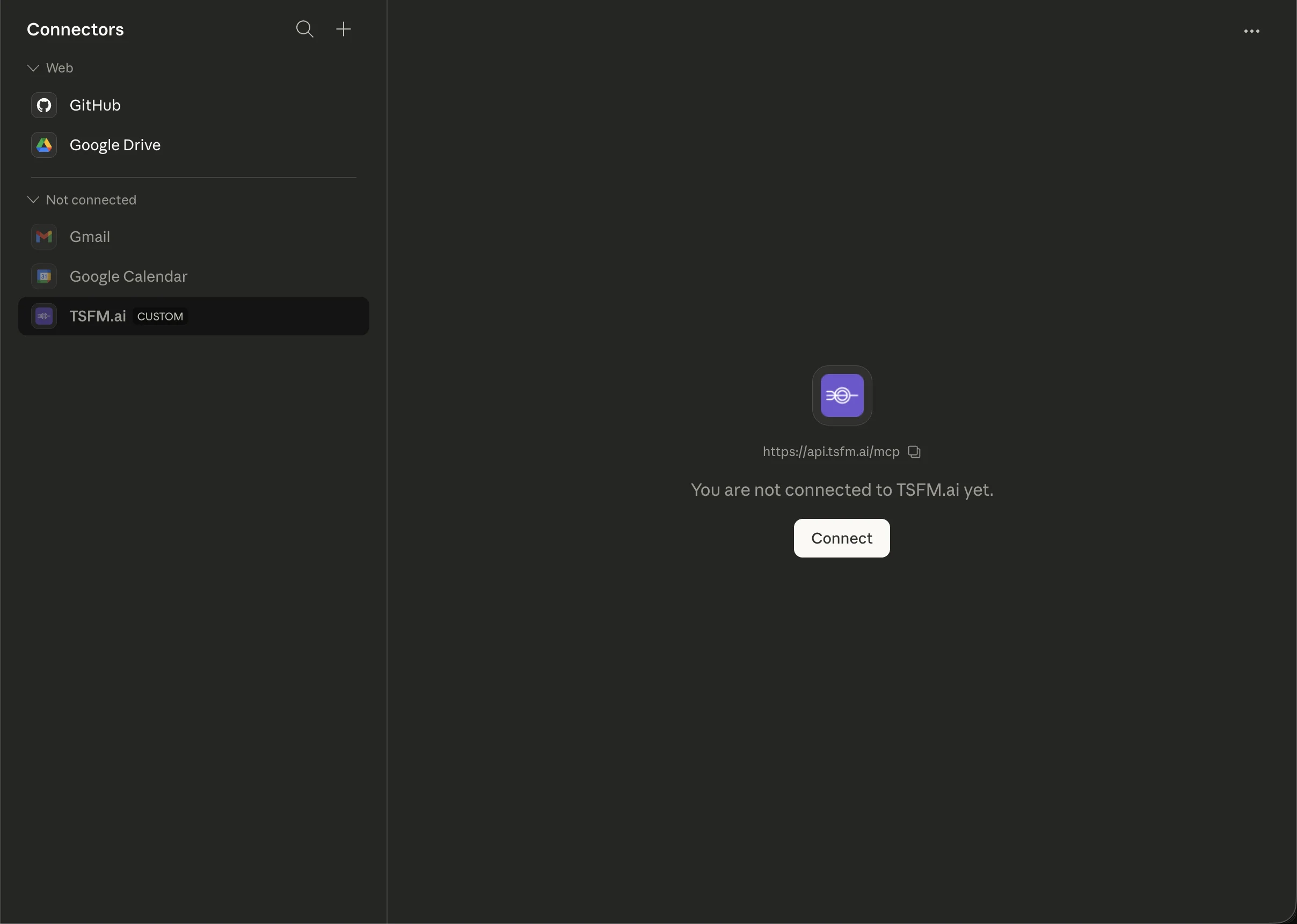
Adding TSFM.ai as a connector takes about thirty seconds. In Claude's settings, go to Connectors, click Add custom connector, and enter the server URL: https://api.tsfm.ai/mcp. TSFM.ai appears alongside first-party connectors like GitHub, Google Drive, and Gmail — it's a peer in the connector panel, not a workaround.
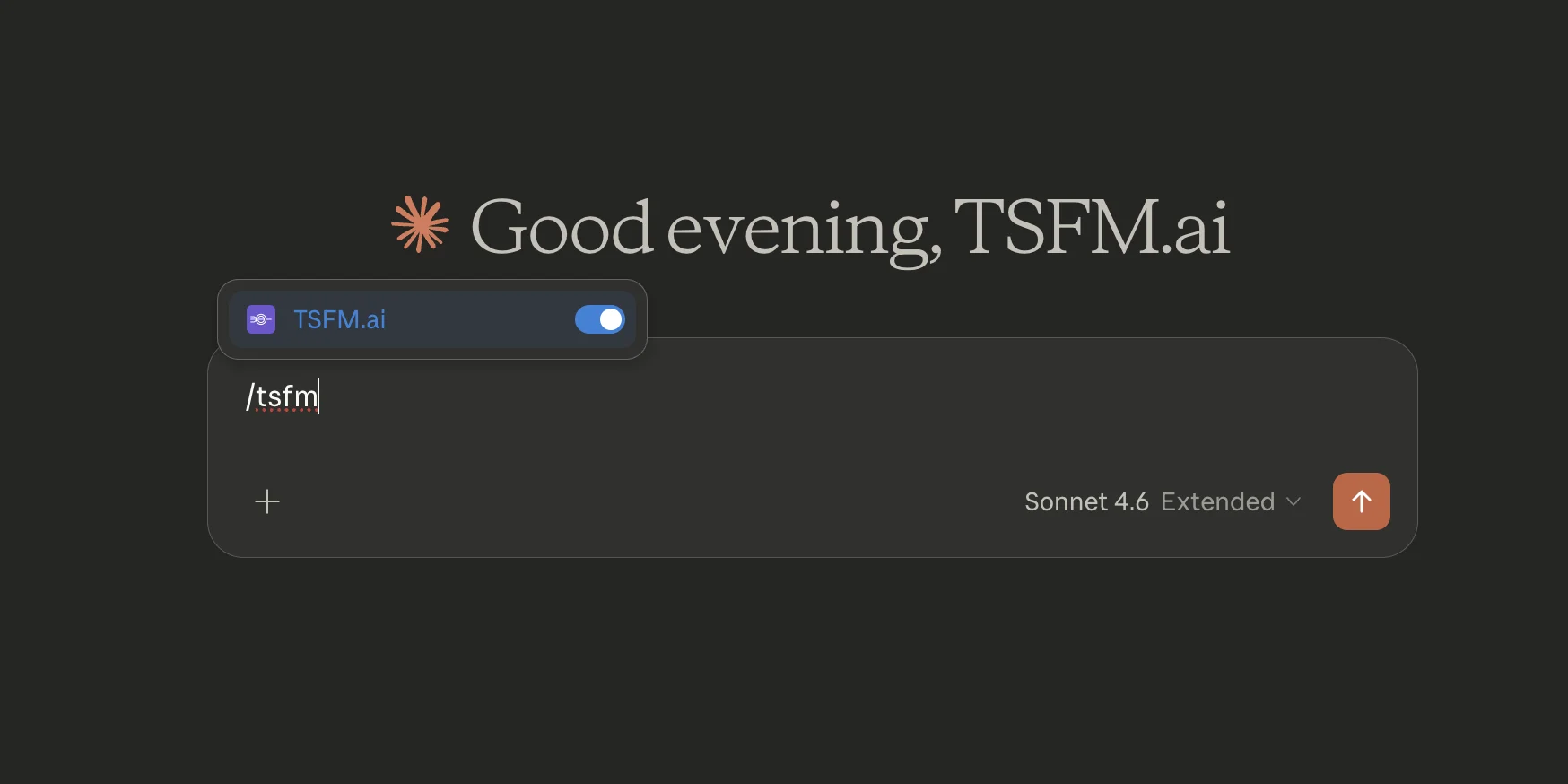
Once connected, toggle the TSFM.ai connector on for any conversation using the + button in the chat interface. Claude will greet you with the connector active, and every forecasting tool is immediately available — no terminal, no Docker, no config files.
#Tool Permissions
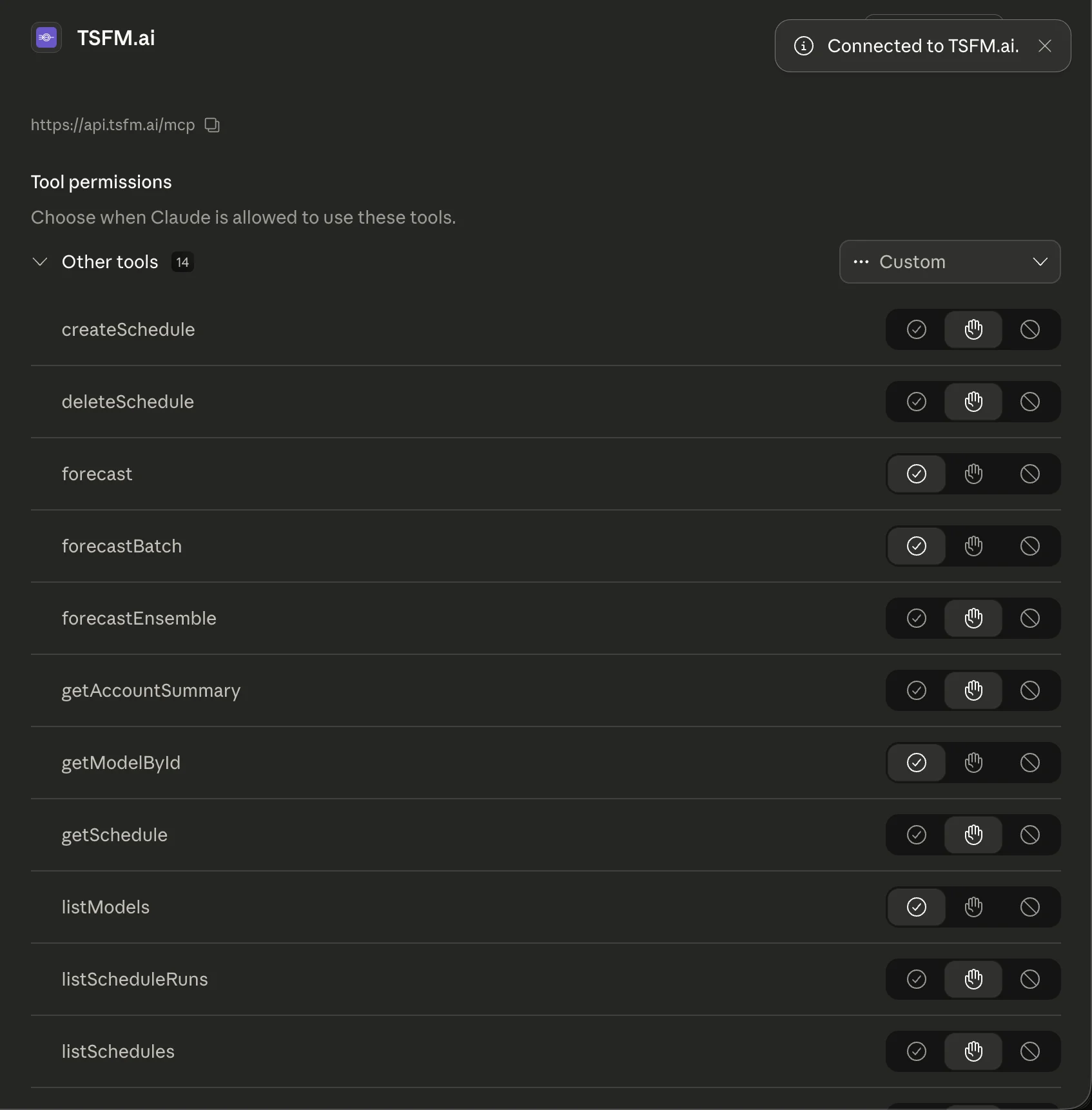
Claude surfaces all 14 TSFM.ai tools with per-tool permission controls. You can set each tool to auto-approve, ask before running, or deny entirely. For read-only operations like listModels and getModelById, auto-approve keeps things fast. For actions that consume credits like forecast and forecastEnsemble, the ask-first default makes sense.
#What Claude Can Do with TSFM.ai
With the connector active, Claude can browse the full model catalog, run forecasts, compare models head-to-head, create scheduled recurring forecasts, and render charts — all through natural language.
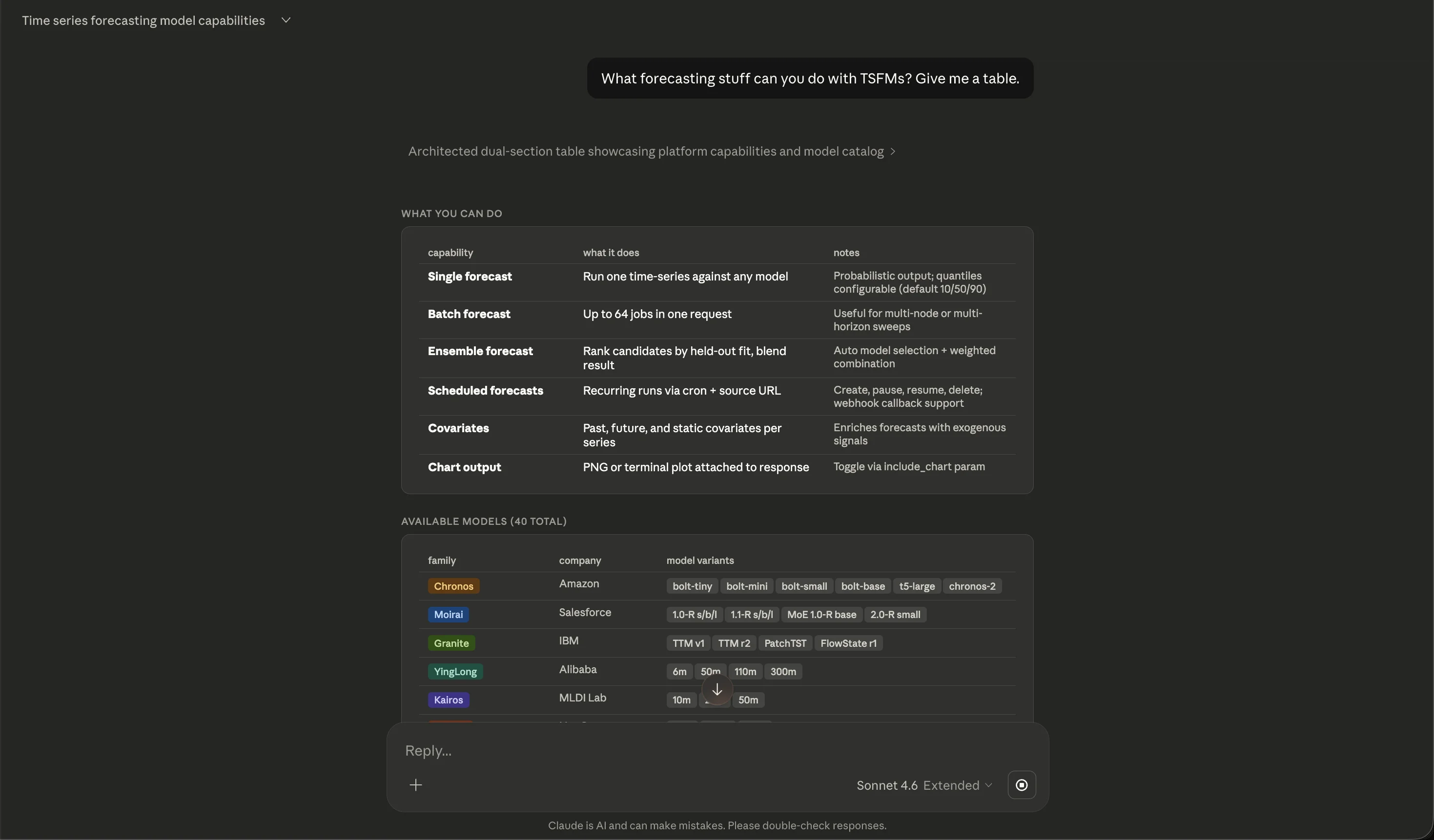
The platform currently exposes 43 hosted models. A representative slice of the catalog looks like this:
| Family | Sponsor / Publisher | Variants |
|---|---|---|
| Chronos | Amazon | bolt-tiny, bolt-mini, bolt-small, bolt-base, t5-large, chronos-2 |
| Moirai | Salesforce | 1.0-R s/b/l, 1.1-R s/b/l, MoE 1.0-R base, 2.0-R small |
| Granite | IBM | TTM v1, TTM r2, PatchTST, FlowState r1 |
| TiRex | NXAI | base, 1.1-gifteval |
| Time-MoE | Xiaohongshu | 50M, 200M |
| YingLong | Alibaba | 6m, 50m, 110m, 300m |
| Kairos | Ant Group | 10m, 23m, 50m |
Each model has different strengths — Chronos-2 excels at short-horizon univariate series, Moirai handles multivariate and covariate-enriched forecasts, Granite TTM is optimized for low-latency production use. Claude can help you navigate these tradeoffs conversationally.
#Multi-Model Comparison in One Prompt
One of the most useful patterns: ask Claude to run the same data through multiple models and compare. In the example below, Claude orchestrates parallel forecasts across all six Chronos variants on realistic ERCOT-style hourly energy load data, then plots the p50 median forecasts side by side.
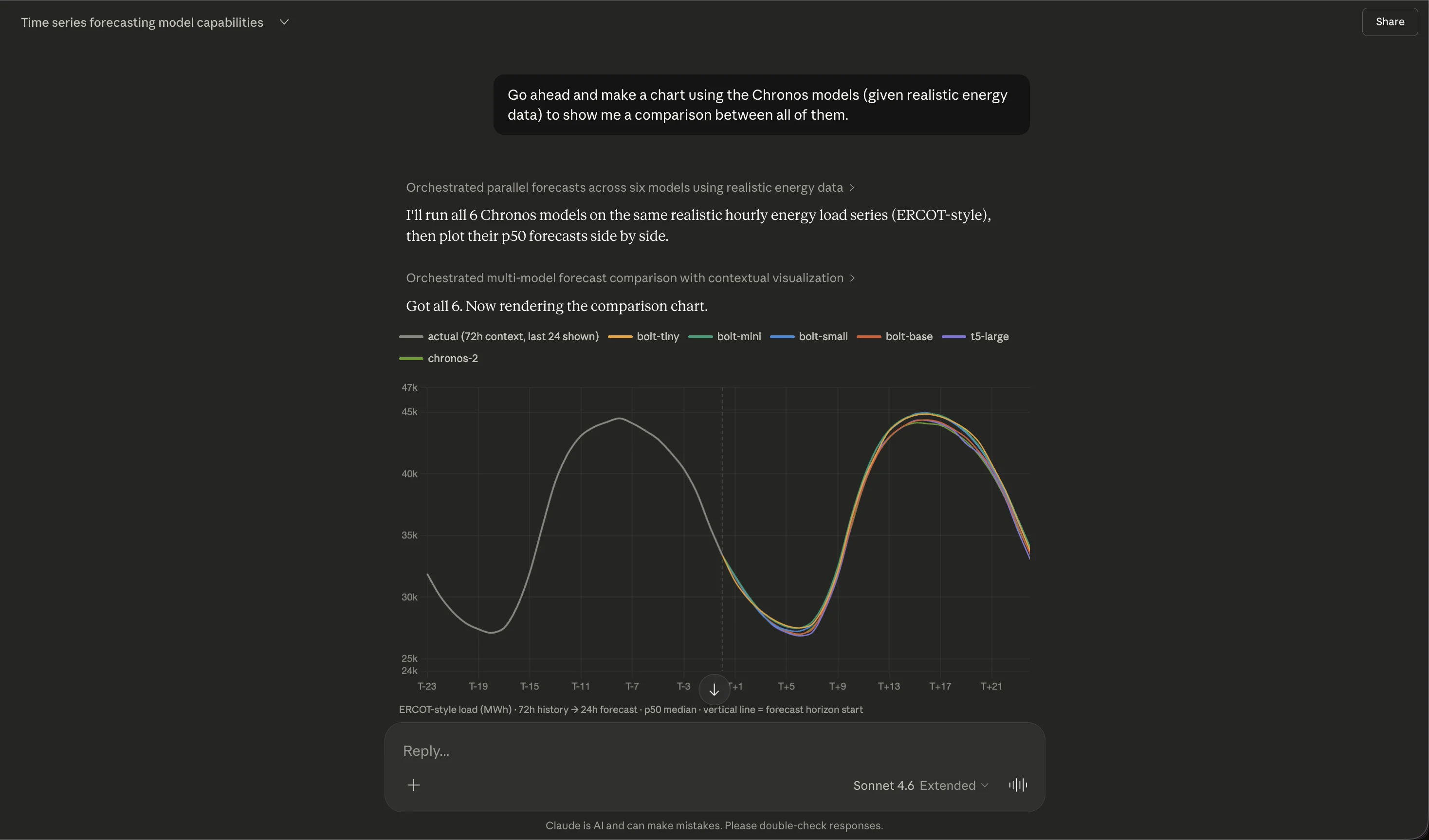
The chart shows 72 hours of historical context (the gray actual line) followed by 24-hour forecasts from each model variant. All six models capture the daily load cycle, but diverge in their predictions for peak magnitude — exactly the kind of nuance that's hard to reason about without seeing the forecasts overlaid. Claude generated this comparison from a single natural-language prompt: "Make a chart using the Chronos models (given realistic energy data) to show me a comparison between all of them."
This is the pattern that makes MCP-based forecasting powerful. The user doesn't need to know which API endpoint to call, how to format the request, or how to render the results. They describe what they want, and Claude orchestrates the rest: selecting the models, running six parallel forecasts, extracting the p50 quantiles, and rendering a publication-quality comparison chart.
#Under the Hood
The MCP server exposes 14 tools organized around three workflows:
Forecasting — forecast, forecastBatch, and forecastEnsemble. Single forecast runs one model on one series. Batch runs up to 64 jobs in one request, useful for multi-node or multi-horizon sweeps. Ensemble ranks candidates by held-out fit, then produces a weighted blend — automatic model selection without manual benchmarking.
Scheduling — createSchedule, getSchedule, listSchedules, listScheduleRuns, pauseSchedule, resumeSchedule, updateSchedule, deleteSchedule. Set up recurring forecasts via cron expression and source URL. The platform pulls fresh data, runs the forecast, and delivers results via webhook callback. Useful for production monitoring dashboards or automated reporting.
Discovery — listModels, getModelById, getAccountSummary. Browse the model catalog, inspect individual model capabilities and parameter ranges, and check your credit balance and usage.
Every forecast returns probabilistic output: configurable quantiles (default 10/50/90) that give you prediction intervals, not just point estimates. Claude can request a PNG chart attached to the response, or work with the raw numbers to build custom visualizations.
Authentication follows the OAuth 2.1 PKCE flow per RFC 9728, so MCP clients can authenticate users securely without handling raw credentials. Once authenticated, each tool call deducts from the user's credit balance and logs usage for billing.
#Why This Matters
The pattern we're seeing — LLM as orchestrator, specialist model as engine — is converging across the industry. Google recently connected TimesFM to BigQuery via MCP, letting agents run AI.FORECAST inside warehouse queries. AWS published a similar architecture for SageMaker endpoints behind MCP. Salesforce's MoiraiAgent uses a 3B-parameter LLM to orchestrate multiple TSFMs, selecting and configuring them based on context.
The common insight is that zero-shot forecasting works best when the forecasting model focuses purely on numerical patterns and a separate system handles context, intent, and presentation. MCP makes this separation clean and composable.
#Getting Started
- Open Claude's Settings → Connectors
- Click Add custom connector
- Enter
https://api.tsfm.ai/mcp - Toggle the connector on in any conversation
That's it. Claude will discover all 14 tools automatically. Start with something simple — "List the available forecasting models" — and work up to multi-model comparisons, scheduled forecasts, and ensemble predictions.
Full API documentation and tool schemas are in our API docs. The MCP server works with any compatible client — Claude.ai, Claude Code, Claude for Work, or any application built on the MCP standard.